AAU CREATE FabLab
How to log in and print on Bambuddy
Guide for students – the printer farm in FabLab
🖨️ New in FabLab: With Bambuddy you now have direct access to the printer farm yourself. Log in with your own account, send your file to the queue, and wait. This guide walks you through everything in just a few minutes.
To book and monitor your 3D prints in FabLab you need to log in to Bambuddy. You do not need to create a new account — you use the same account you already have on facilities.create.aau.dk (where you order prints and plots). There is however one important difference: your Bambuddy username looks slightly different from what you are used to.
Remember: book the printer separately. Bambuddy does not replace the booking system. You still need to book your printer time via aaumedia.onlinebooking.dk before you print — Bambuddy is only used for the actual print file and the queue.
Quick video guide:
The first time you use the new system, you need to have a new password generated for you by us.
There are two options:
1. Have one made in person of your own choosing.
2. Request one via email. We generate one for you.
Your Bambuddy username?
Your Bambuddy username is the same email (lowercase) that you registered with on the facilities website.
Log in
Open the browser, or use the shortcut in the dock, I will open Bambuddy.
Now login with your email and the password you got or chose.
Slice your file for the correct printer
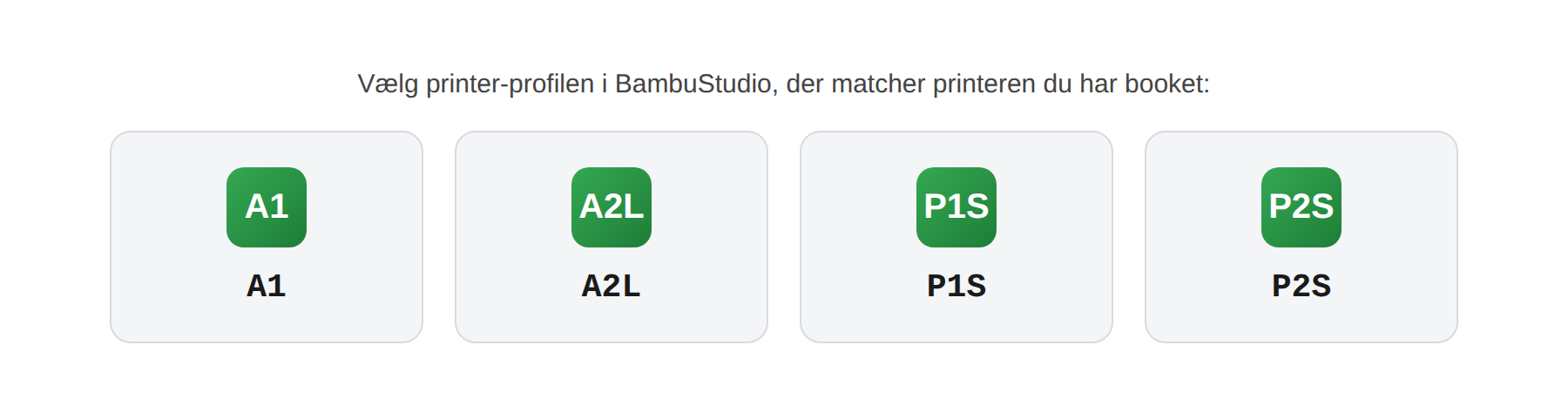
FabLab has several printer types: A1, A2L, P1S, and P2S. When you slice your model in Bambu Studio, you must select the printer profile that matches the printer you have booked — not just any profile. An incorrect profile can result in the wrong build plate size, wrong temperatures, or a print that simply does not fit on the printer.
- Open your model in Bambu Studio and select the printer profile that matches your booked printer: A1, A2L, P1S, or P2S
- Slice the model (“Slice plate”)
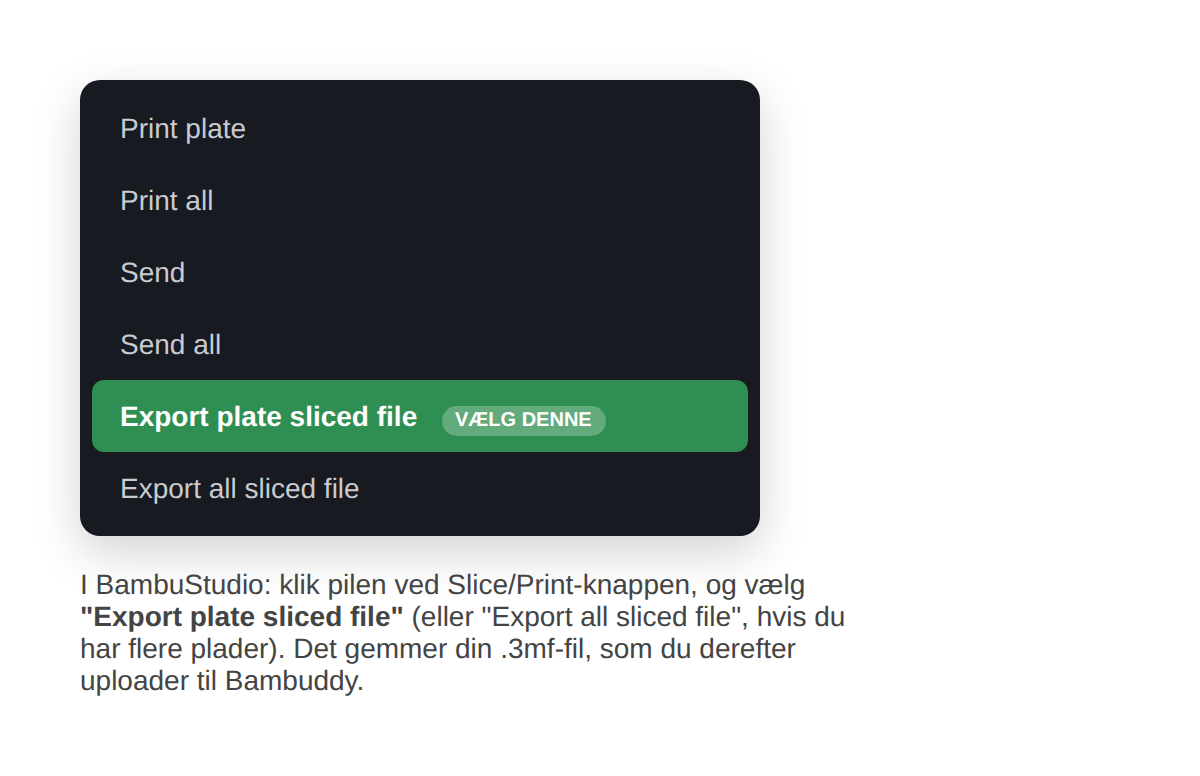
- Click the arrow next to the Slice/Print button and choose “Export plate sliced file”
- Save the .3mf file somewhere you can find it again
Upload the file to Bambuddy
- Log in to Bambuddy
- Go to File Manager in the left menu
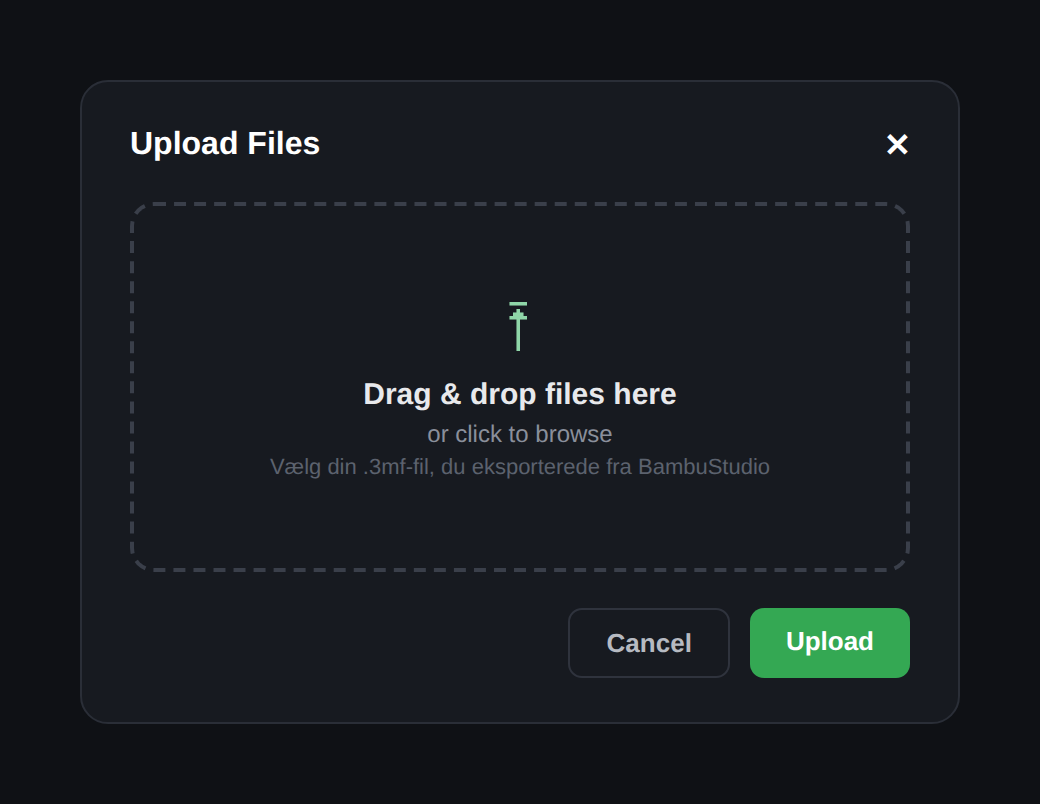
- Click Upload Files (or drag the file directly into the window)
- Select your .3mf file and click Upload
Start the print on the correct printer
- Go to Printers in the left menu
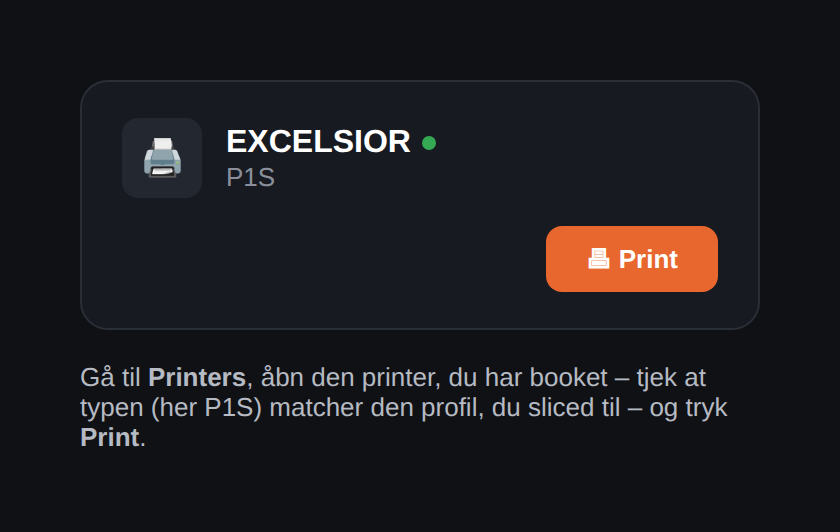
- Open the printer you have booked — confirm that the type matches what you sliced for
- Click Print and select your uploaded file
- Confirm that Filament Mapping shows “Ready” and click ASAP
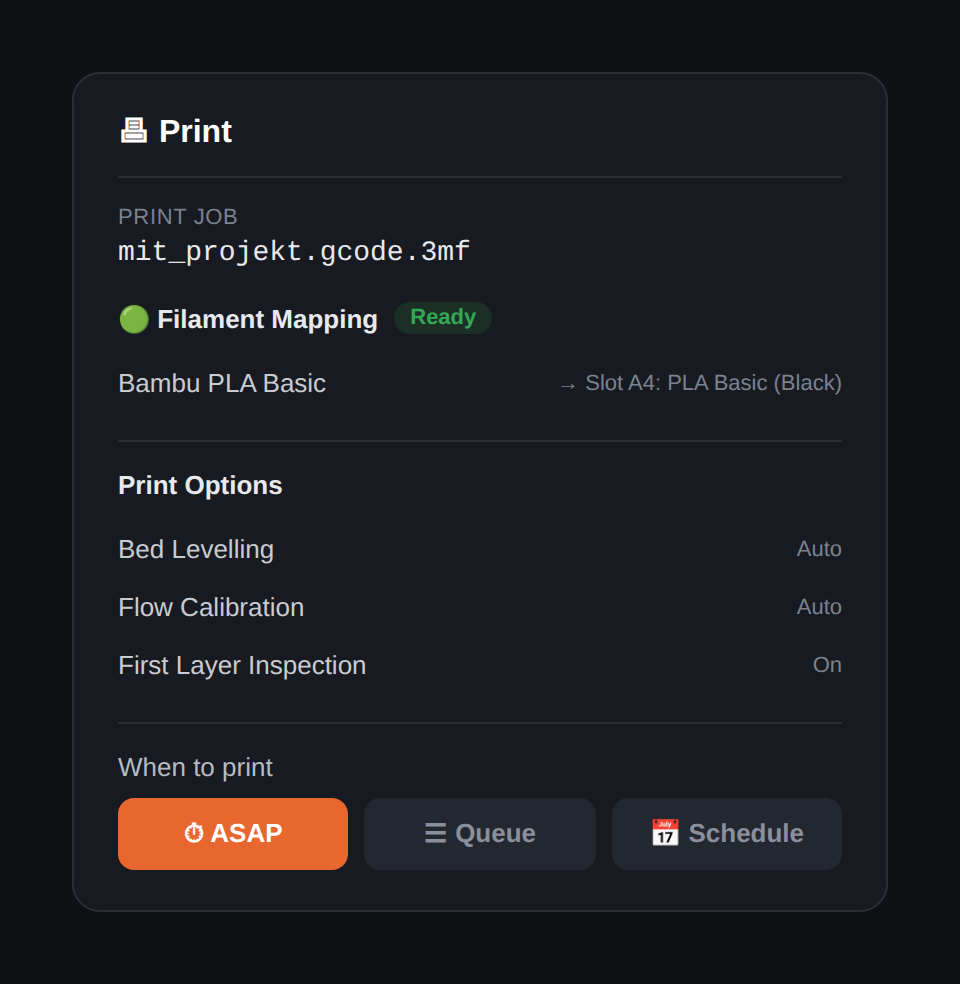
“ASAP” starts the print as soon as the printer is available. “Queue” and “Schedule” are only used if you deliberately want to queue the job or schedule it for later.
Have you booked? Only print on a printer you have booked yourself via aaumedia.onlinebooking.dk — otherwise you risk occupying a time slot another student has reserved.
Frequently asked questions
- I can’t remember my password?
- Your password is the same as on facilities.create.aau.dk — reset it there if in doubt.
- I’ve tried, but login still doesn’t work?
- Check that you have: removed the @ symbol, replaced all full stops with hyphens, and used lowercase only. A single overlooked full stop is the most common mistake.
- I can log in, but don’t see the printers I expect?
- Contact FabLab — it can take a little while for your account to be fully set up after your first login.
- Do I still need to book the printer somewhere else?
- Yes. Bambuddy manages the actual print file and the queue, but the time booking of the printer itself still takes place via aaumedia.onlinebooking.dk — the two systems are not connected.
- I selected the wrong printer profile in Bambu Studio — what now?
- Slice the model again with the correct profile and upload the new file to Bambuddy — do not use a file that was sliced for a different printer type.
Need help?
Contact FabLab: admtproto@create.aau.dk